Basic performance tips
If your performance is bad, you may first want to try the other profiles. The ENB profile is less resource-hungry than the CS one. The Performance profile is even less demanding.
If you are still struggling, there are still a few things you can do to increase performance :
- Switch from SteamVR to OpenComposite
- Switch from Skyrim Upscaler VR - DLAA to either Skyrim Upscaler VR - DLSS if your GPU allows it, or Skyrim Upscaler VR - FSR
- Disable everything in the CS Resources section.
- Disable everything in the ReShade section
- Activate VR FPS Stabilizer - Occlusion FPS boost
- Reinstall Faster HDT-SMP - VR XML and select AVX or AVX2 if your CPU supports it
- Run VRAMr by selecting it at the top right in mo2 (requires a lot of free disk space to generate)
Note that the Spirit of Grit Performance profile already does some of these things
Quest 2 Performance Tips
There are a couple things you can do that can help with performance that I recommend.
Using OpenComposite
To switch to Open Composite select OC swapper in the dropdown menu in MO2

then click the button!
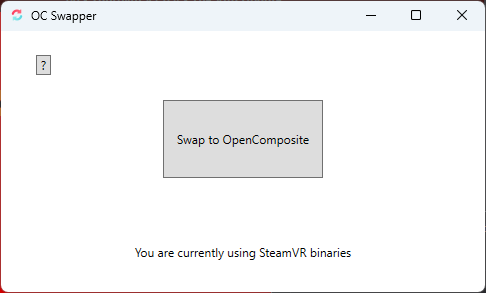
Then you will need to set your prefered platform to handle OpenXR
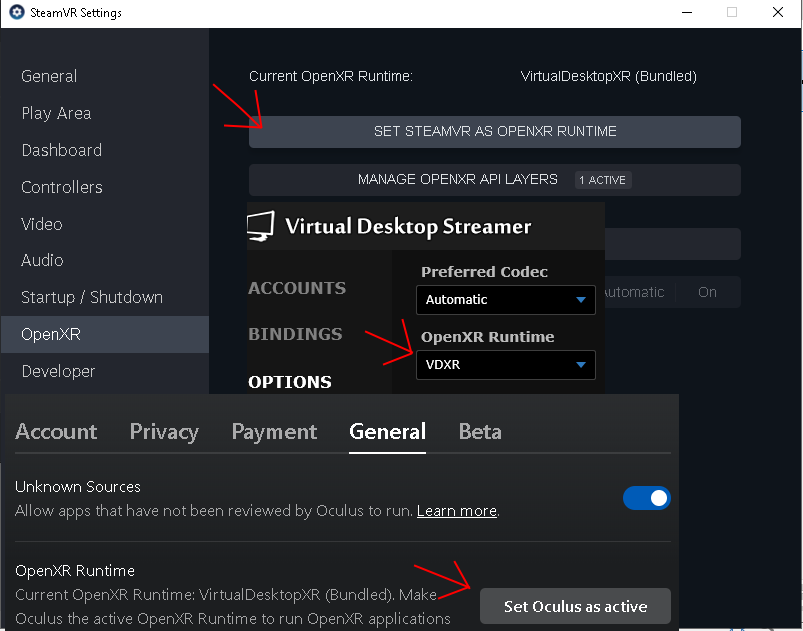
Note: OpenComposite does not work for any other headset than Oculus headsets!
Change Refresh Rate
Changing the refresh rate to a higher one in the Oculus settings reduces the maximum resolution delivered to your headset as well as offering a smoother feel to the game. The reduced resolution will help the game run at a more stable FPS and likely a higher FPS. Combine the higher FPS with the higher refresh rate of the Quest 2 and you have a much nicer game playing experience.
So, to do this you need to start by connecting your Quest 2 headset to your PC via USB, power your headset on and then head over to Devices in the left-hand menu of the Oculus PC client.
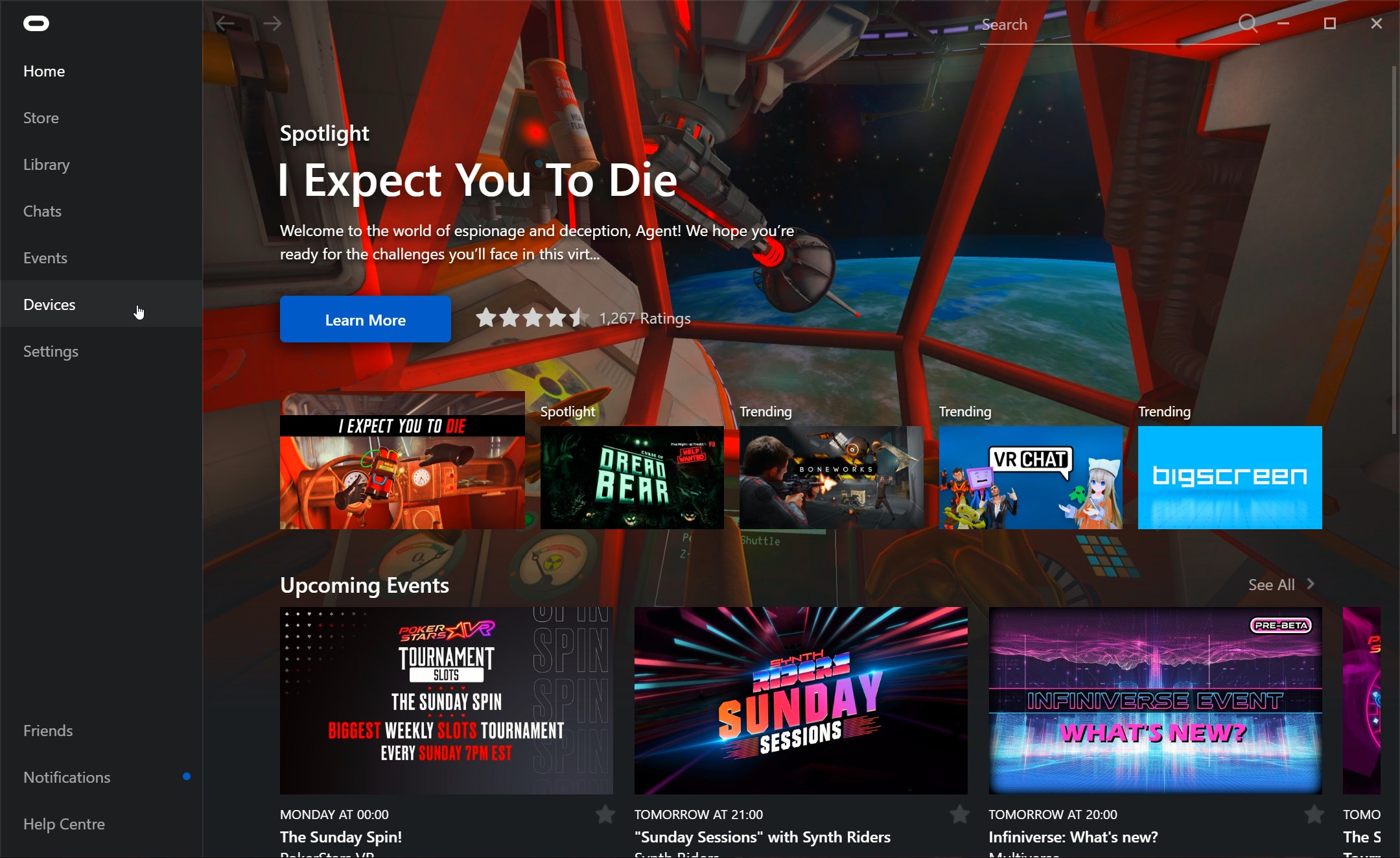
When in there, connect select the top menu option:

In the right-hand menu that pops-up, scroll down to Graphics Preferences:
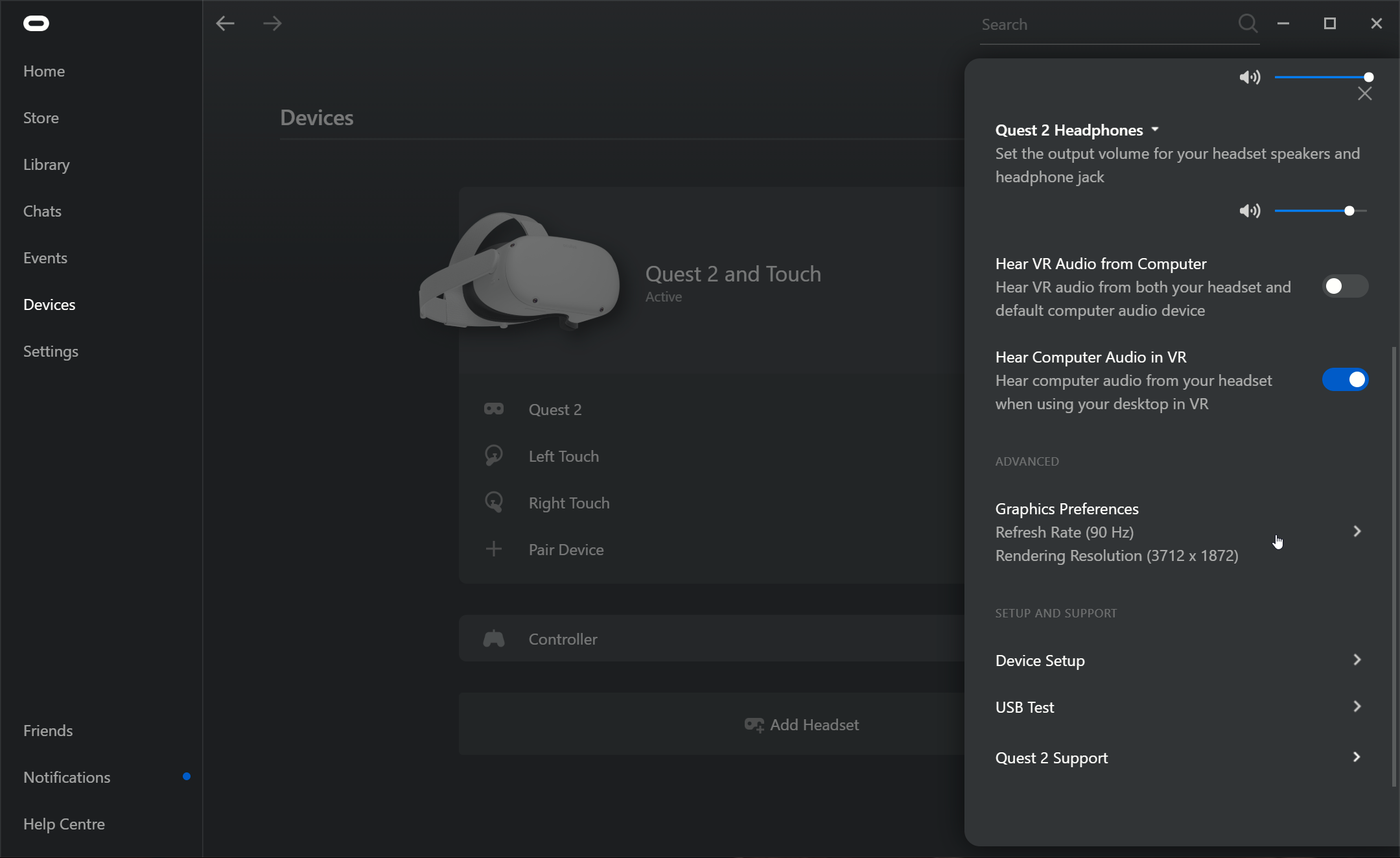
In the pop-up menu, ensure that the Automatic resolution scaling is OFF. I recommend trying each setting in turn to see at which point you get the best look vs performance. I can’t tell you what point that would be because it’s a subjective choice. Also ensure that the Rendering Resolution is at 1.0x as stated in the main readme.
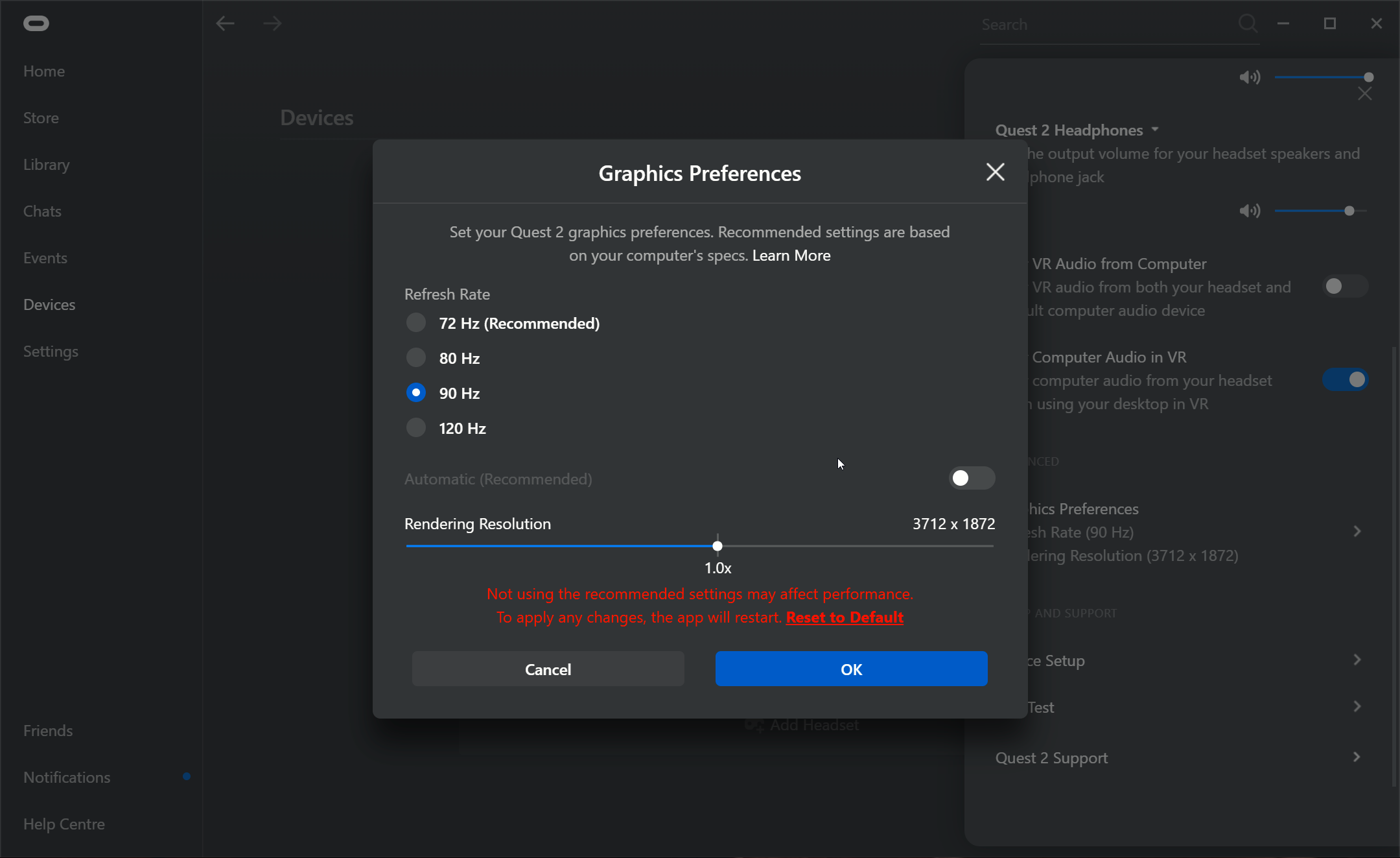
Once you’ve made your changes, click OK.
Increase the Oculus Link USB Data Rate
For some odd reason, the default Oculus Link settings limit the USB data rate between your PC and the Oculus headset to 100Mbps but the maximum link speed is 500Mbps. That’s 5 times the data rate over the regular setting.
Increasing the USB data rate means that your PC and your headset can communicate much faster, meaning that VR games will look sharper because there is less compression needed on the data as well as a noticeable reduction in artifacts and flickering in your vision.
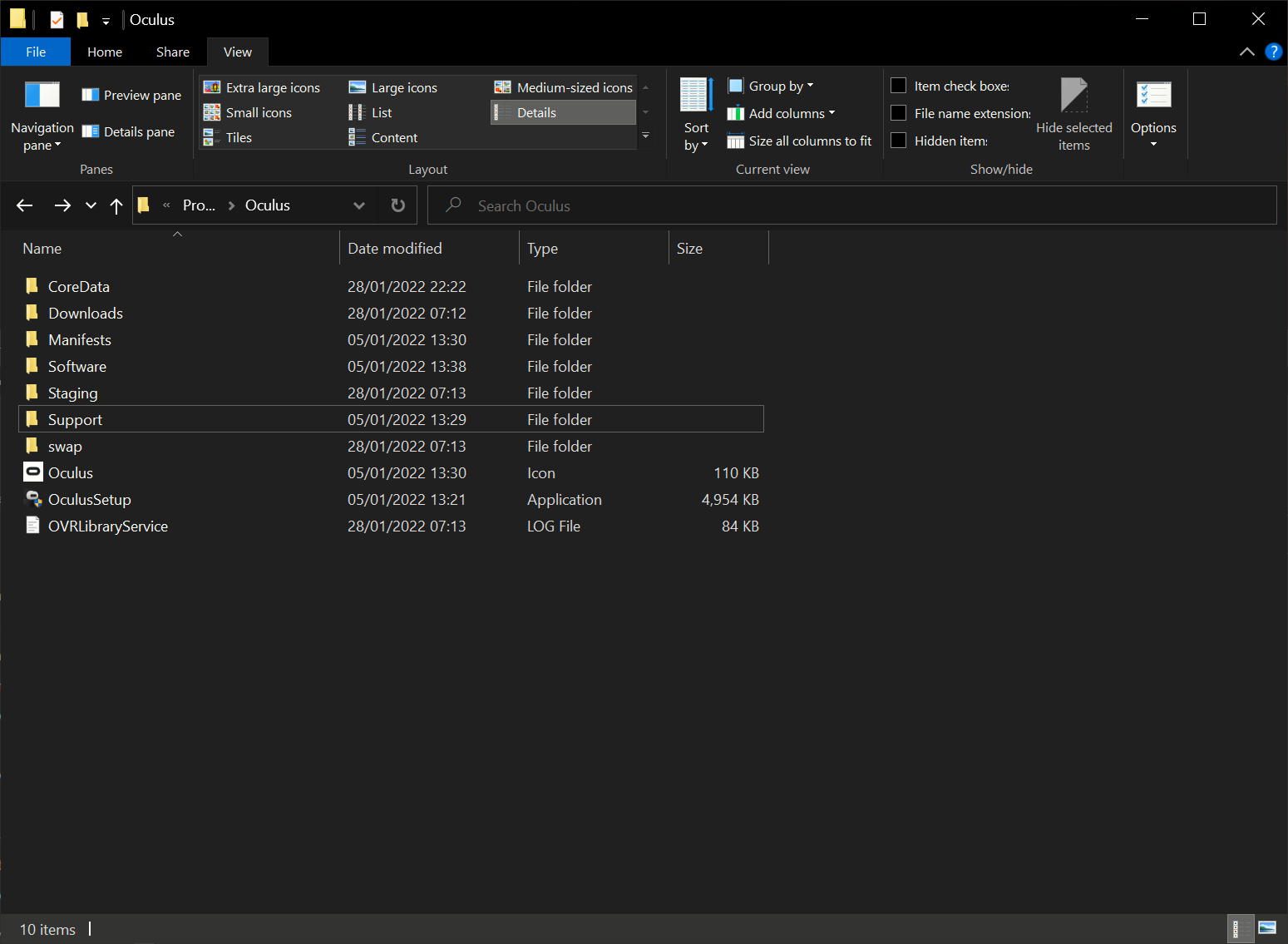
To do this, head to the installation folder of the Oculus PC client, usually C:\Program Files\Oculus, and head into the Support folder:
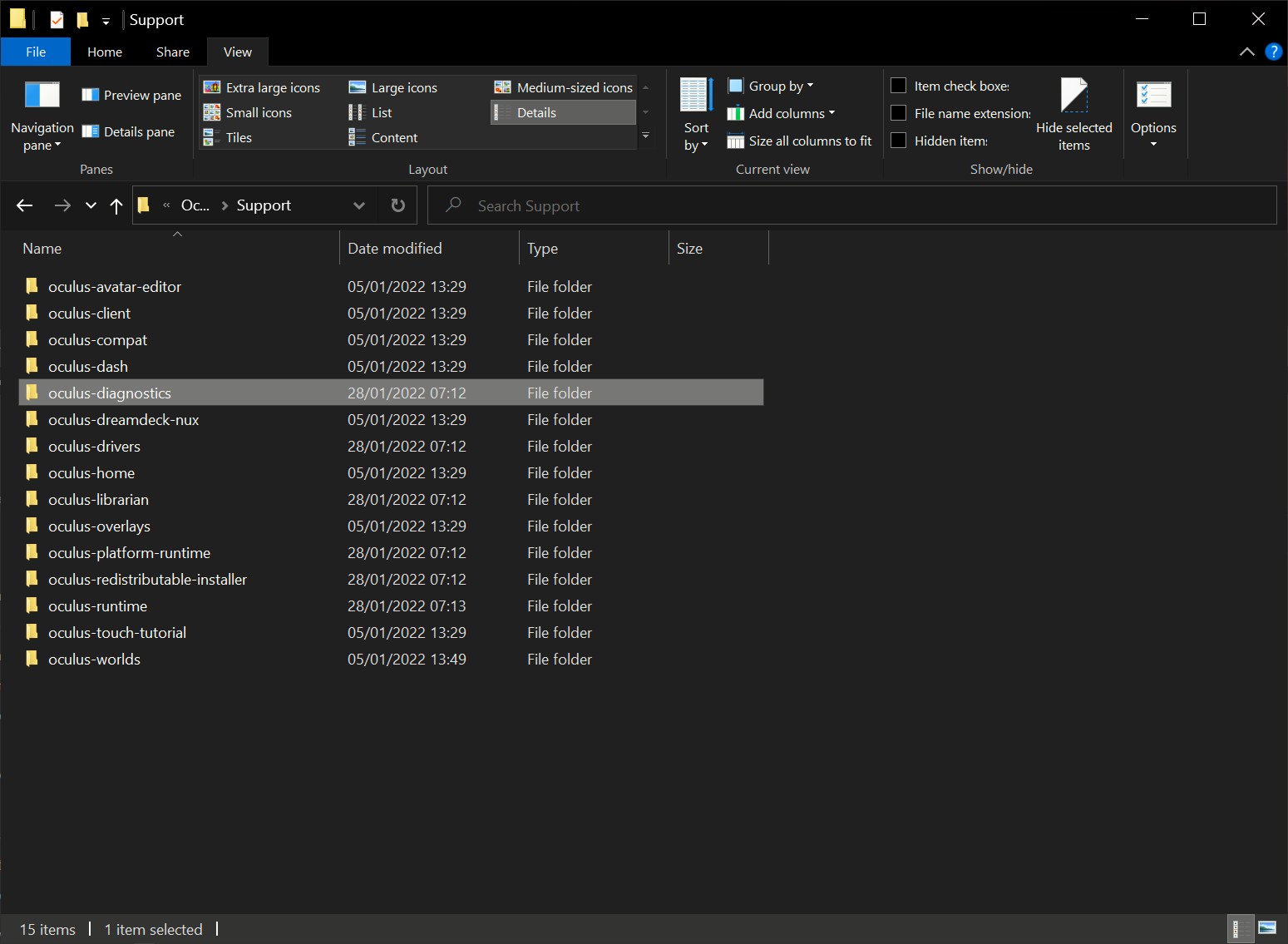
Once there, head into the oculus-diagnostics folder:
Once there, run the OculusDebugTool:
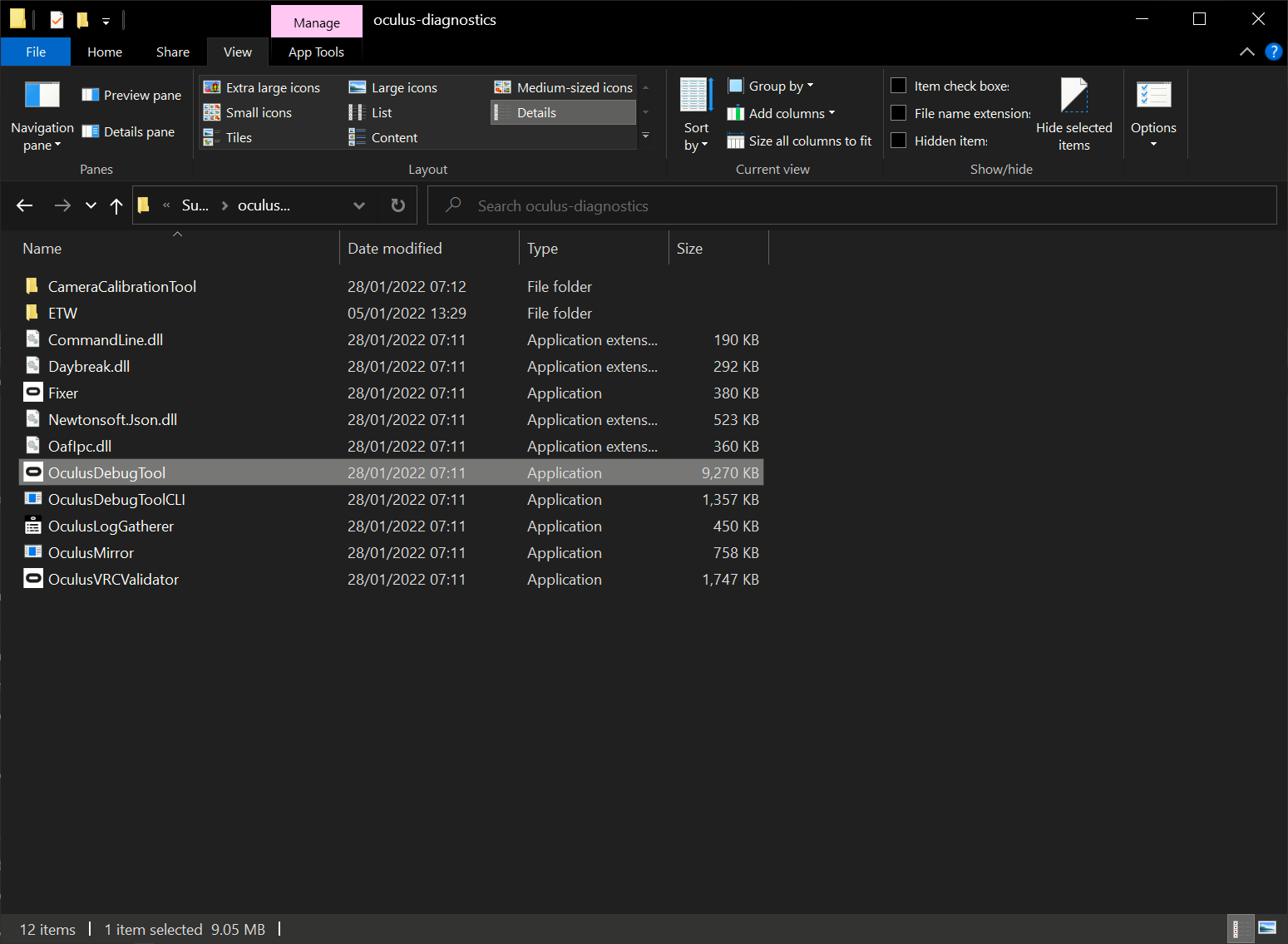
in the Oculus Debug Tool, change Encode Bitrate (Mbps) to 350. You can go as high as 500Mbps as mentioned earlier but try somewhere in the middle first before going all in.
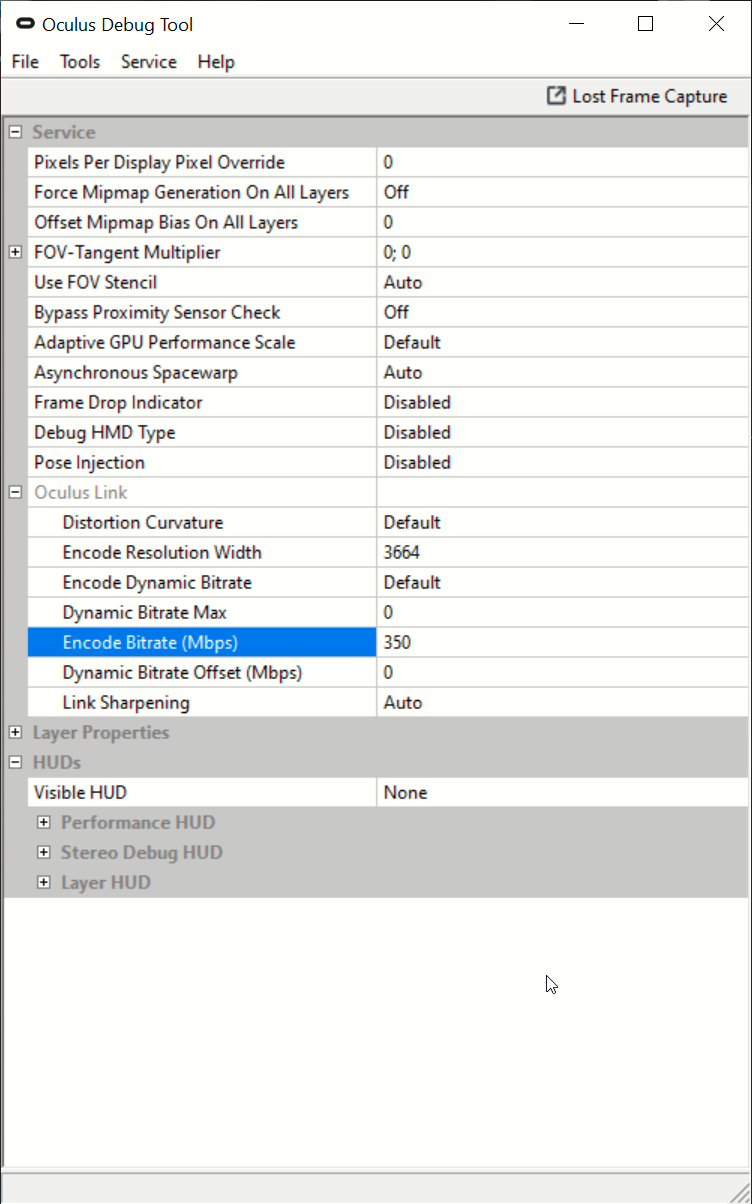
Once changed, close out the tool and done!
Monitoring Performance with an Oculus Quest 2
The Oculus Debug Tool also comes with a performance overlay. Follow the steps above to open the Oculus Debug Tool and set the Visible HUB option to Performance.
DON’T CLOSE THE OCULUS DEBUG TOOL AS THIS WILL ALSO CLOSE THE PERFORMANCE OVERLAY.
You will know when it is enabled as soon as you put on your headset. You can use the info here to help with monitor the performance you are getting in-game.